
Aadhaar PDF Password: How to Open e-Aadhaar PDF File
When residents download their Aadhaar card from the official UIDAI website, the file is usually provided in PDF format. This digital version of Aadhaar is known as e-Aadhaar. The PDF file is password protected to ensure that personal identity information remains secure and cannot be accessed by unauthorized users.
Many people download their Aadhaar card successfully but become confused when they try to open the file because the PDF asks for a password. Without entering the correct password, the document cannot be viewed.
Understanding the Aadhaar PDF password format helps residents open the e-Aadhaar file easily and access their Aadhaar information whenever required.
This guide explains what the Aadhaar PDF password is, why the PDF is password protected, and how to open the e-Aadhaar file step by step.
What is e-Aadhaar
e-Aadhaar is the digital version of the Aadhaar card issued by the Unique Identification Authority of India (UIDAI). It contains the same information as the physical Aadhaar card and can be downloaded online after Aadhaar enrollment or Aadhaar update.
The e-Aadhaar document includes important personal details such as:
- Aadhaar number
- Name of the Aadhaar holder
- Photograph
- Date of birth
- Gender
- Address
- Secure QR code
The digital Aadhaar file is legally valid and can be used as identity proof for various services.
Since the document contains sensitive information, UIDAI protects the PDF file with a password.
Why Aadhaar PDF is Password Protected
The Aadhaar card contains personal identity details that must remain secure. To prevent unauthorized access, UIDAI provides the downloaded Aadhaar file as a password-protected PDF.
This security measure ensures that only the Aadhaar holder or authorized person who knows the password can open the document.
Password protection helps prevent misuse of identity information and keeps the Aadhaar document safe even if the file is shared or stored on a computer or mobile device.
Because of this security feature, users must enter the correct password before viewing the e-Aadhaar PDF.
Aadhaar PDF Password Format
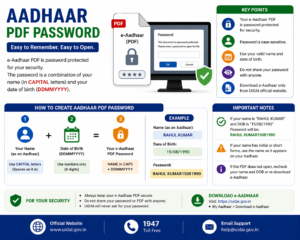
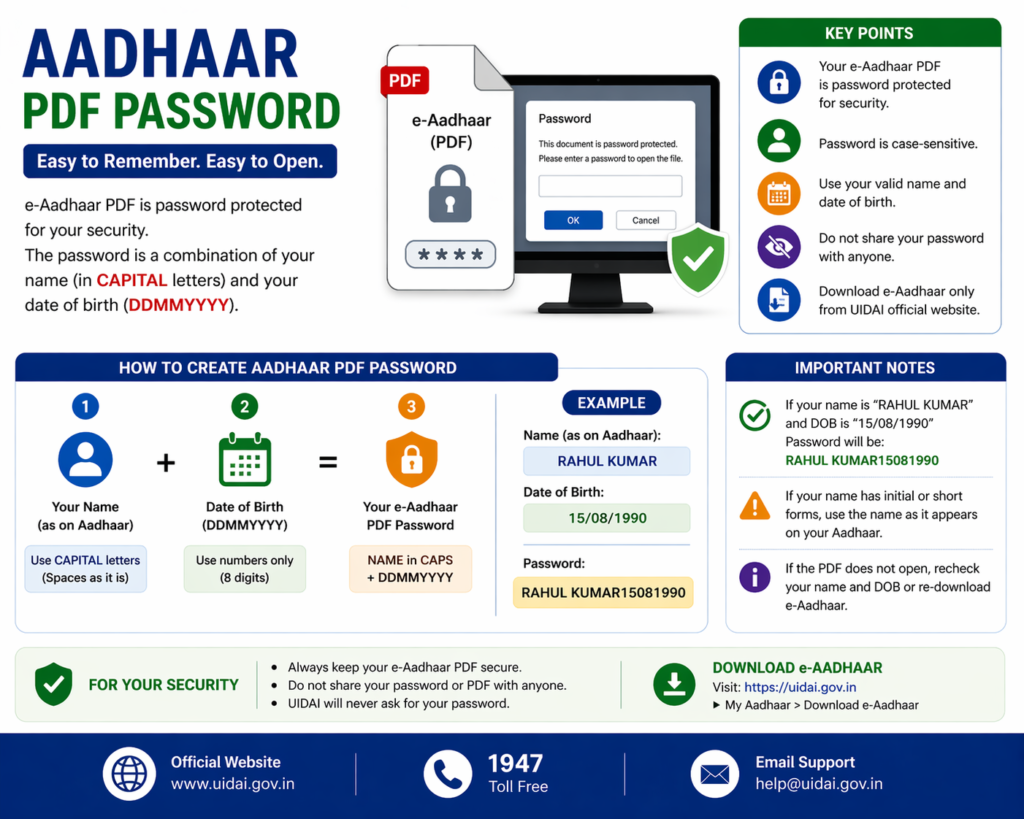
The password required to open the e-Aadhaar PDF follows a simple format. It combines letters from the Aadhaar holder’s name with the year of birth.
The password format is:
First four letters of the name in CAPITAL letters + Year of Birth
This rule applies to all Aadhaar PDF files downloaded from the UIDAI portal.
Example of Aadhaar PDF Password
Understanding the password becomes easier with an example.
Suppose the Aadhaar holder’s name is Rohit Sharma and the year of birth is 1992.
The password will be:
ROHI1992
Another example:
If the name is Neha Gupta and the birth year is 1988, the password will be:
NEHA1988
The first four letters of the name must always be written in uppercase letters.
Entering the password in the correct format allows the PDF file to open successfully.
Steps to Open Aadhaar PDF File
Opening the Aadhaar PDF file is simple once you know the password format.
Step 1: Download e-Aadhaar
First download the Aadhaar card from the official UIDAI website.
The file will be saved as a PDF document on your device.
Step 2: Open the PDF File
Locate the downloaded Aadhaar file on your computer or mobile device and open it using a PDF reader.
Step 3: Enter Password
When prompted for a password, enter the password in the correct format:
First four letters of your name (capital letters) followed by the year of birth.
Step 4: Access Aadhaar Card
After entering the correct password, the e-Aadhaar document will open and you can view or print the Aadhaar card.
How to Download e-Aadhaar from UIDAI Website
If you do not yet have the e-Aadhaar file, you can download it from the UIDAI website.
The process usually involves the following steps:
- Visit the official UIDAI website.
- Navigate to the Aadhaar download section.
- Enter Aadhaar number, Virtual ID, or Enrollment ID.
- Enter captcha code displayed on the screen.
- Verify using OTP sent to the registered mobile number.
- Download the Aadhaar PDF file.
Once the file is downloaded, you can open it using the Aadhaar PDF password.
Benefits of e-Aadhaar
The digital Aadhaar document offers several advantages.
Easy Access
Residents can download Aadhaar anytime from the UIDAI portal without waiting for the physical card.
Secure Document
The password protection ensures that only authorized users can open the file.
Valid Identity Proof
The e-Aadhaar is digitally signed by UIDAI and is legally valid for identity verification.
Convenient Storage
The document can be stored on computers, mobile devices, or cloud storage for easy access.
Because of these benefits, many residents prefer using the digital Aadhaar version.
What to Do if Aadhaar PDF Password Does Not Work
Sometimes users may experience problems opening the Aadhaar PDF file. This usually happens because the password is entered incorrectly.
Here are some things to check.
Check Name Format
Ensure that the first four letters of the name are entered correctly and in capital letters.
Check Year of Birth
Make sure the correct year of birth is used in the password.
Avoid Extra Spaces
Do not include spaces before or after the password.
Verify Aadhaar Details
If the password still does not work, confirm the exact spelling of the name used during Aadhaar enrollment.
Correcting these mistakes usually solves the issue.
How to Print Aadhaar After Opening PDF
Once the e-Aadhaar PDF file is opened successfully, residents can print the document if needed.
To print the Aadhaar card:
- Open the PDF file using the correct password.
- Click the print option in the PDF reader.
- Select the printer and print the document.
The printed Aadhaar copy is valid and can be used as identity proof.
Security Tips for Aadhaar PDF
Since the Aadhaar card contains sensitive information, it is important to handle the PDF file carefully.
Residents should follow some basic security precautions.
Avoid sharing the Aadhaar PDF file with unknown individuals. Store the document securely on trusted devices.
If the file is stored on a public computer, ensure that it is deleted after use.
Protecting Aadhaar information helps prevent identity misuse.
Difference Between e-Aadhaar and Physical Aadhaar
Although the format is different, both versions of Aadhaar contain the same information.
| Feature | e-Aadhaar | Physical Aadhaar |
| Format | Digital PDF | Printed card |
| Security | Password protected | Physical document |
| Accessibility | Download anytime | Delivered by post |
| Validity | Fully valid | Fully valid |
Both versions are accepted as identity proof for most services.
Related Aadhaar Services
After downloading and opening the e-Aadhaar file, residents may also use other Aadhaar services such as:
- Update Aadhaar details
- Check Aadhaar status
- Order PVC Aadhaar card
- Lock or unlock Aadhaar biometrics
- Update Aadhaar address
These services allow residents to manage their Aadhaar information conveniently.
Frequently Asked Questions
What is Aadhaar PDF password
The Aadhaar PDF password is a security code required to open the e-Aadhaar file downloaded from the UIDAI website.
How is Aadhaar PDF password created
The password consists of the first four letters of the Aadhaar holder’s name in capital letters followed by the year of birth.
Can I open Aadhaar PDF without password
No, the e-Aadhaar PDF cannot be opened without entering the correct password.
Is e-Aadhaar valid as identity proof
Yes, e-Aadhaar is digitally signed by UIDAI and is valid for identity verification.
Conclusion
The Aadhaar PDF password is an important security feature that protects the personal information contained in the e-Aadhaar document. Although the password may initially confuse some users, understanding the simple password format makes it easy to open the file.
By entering the correct password using the first four letters of the name and the year of birth, residents can quickly access their Aadhaar card in digital format.
The e-Aadhaar document provides a convenient and secure way to store and use Aadhaar information whenever identity verification is required.
Disclaimer: The Aadhaar-related information provided on this website is for general informational purposes only. For official updates, services, and verified details, please visit the UIDAI official website.